> ## Documentation Index
> Fetch the complete documentation index at: https://docs.mynexus.io/llms.txt
> Use this file to discover all available pages before exploring further.
# Finding a Campaign
> After creating your account, your next step will be to add yourself to a campaign. Below are the steps to find and add a campaign.
### Find a Campaign
Ensure that you are logged into your account by visiting app.mynexus.io and using your account credentials.
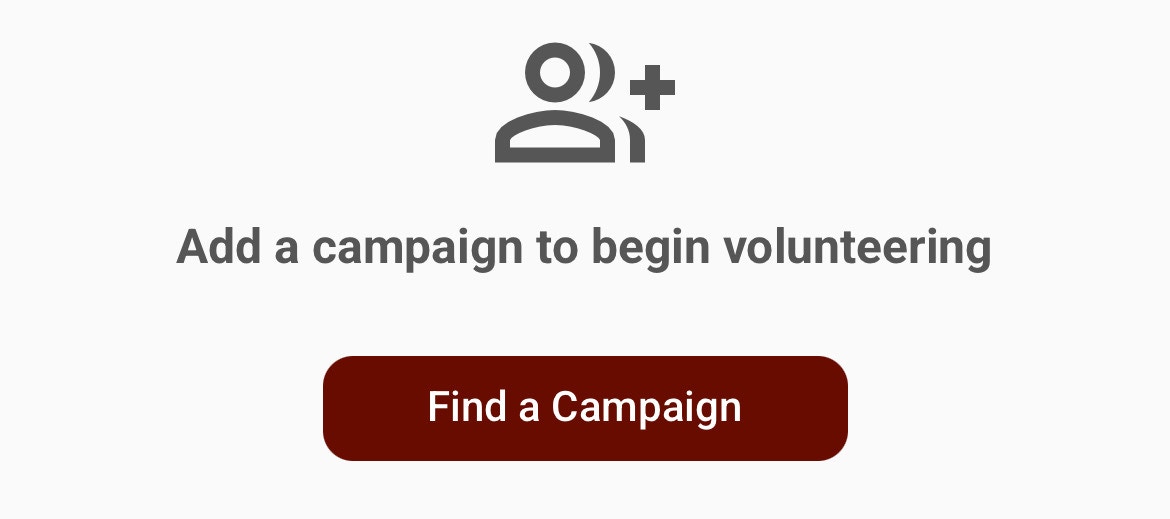 If you do not see the "Find a Campaign" option, it may mean you are already added to a campaign. Please see the section below titled "Find a Campaign (Multiple)"
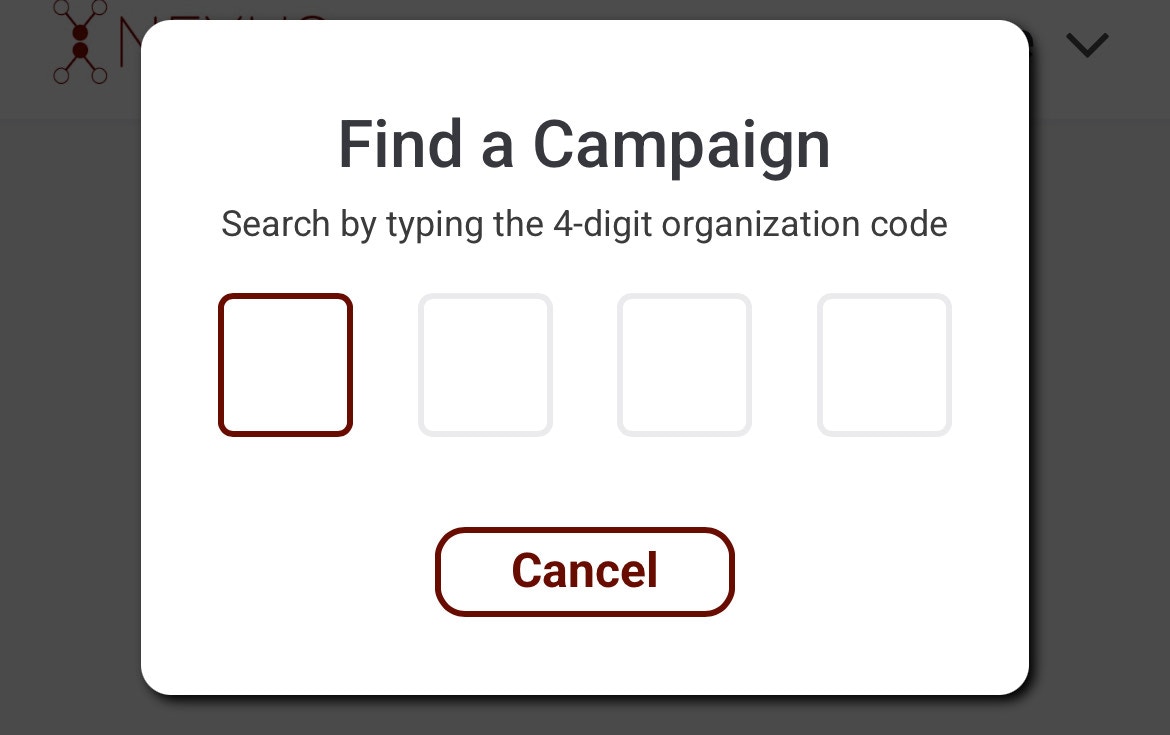
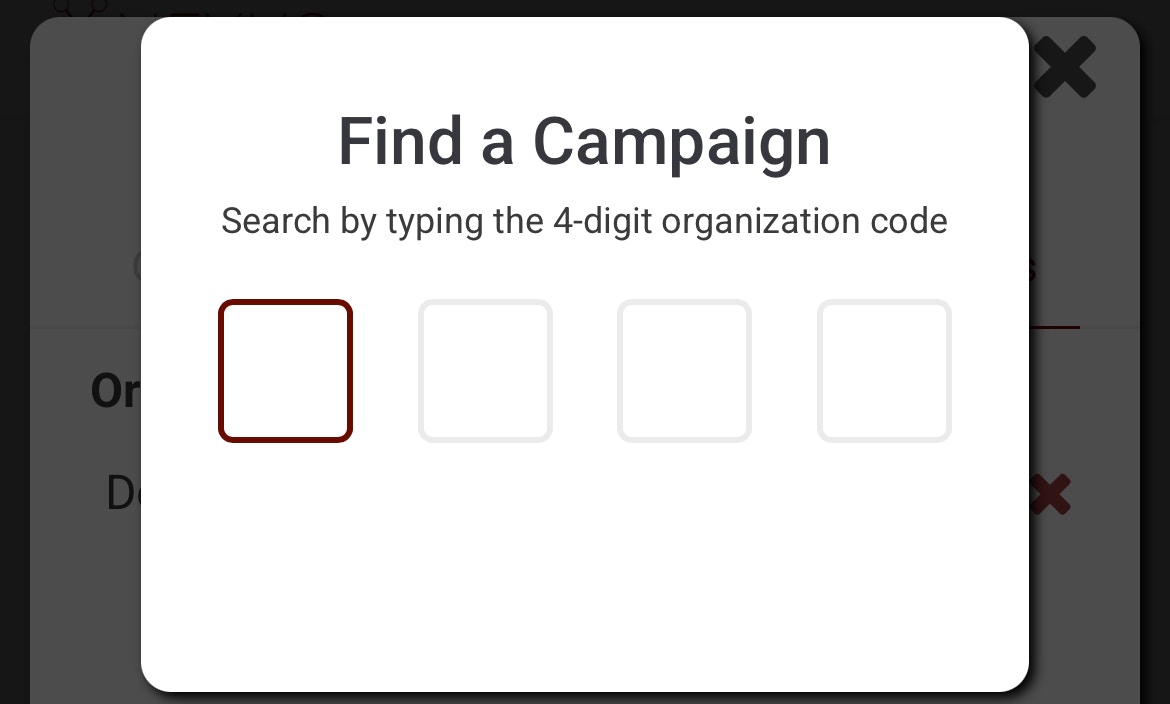
Each campaign is assigned a 4-digit code that they can provide to volunteers. Once the code is inputted, the system will automatically check for a campaign that matches.
If you do not see the "Find a Campaign" option, it may mean you are already added to a campaign. Please see the section below titled "Find a Campaign (Multiple)"
Each campaign is assigned a 4-digit code that they can provide to volunteers. Once the code is inputted, the system will automatically check for a campaign that matches.
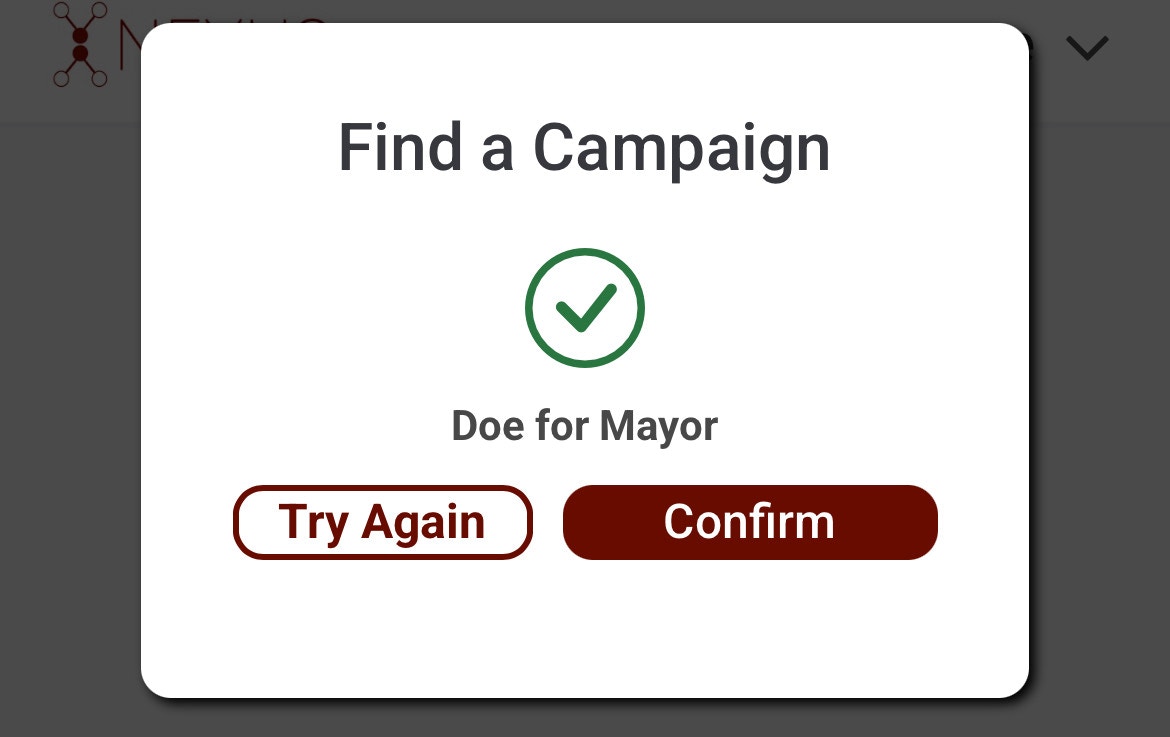
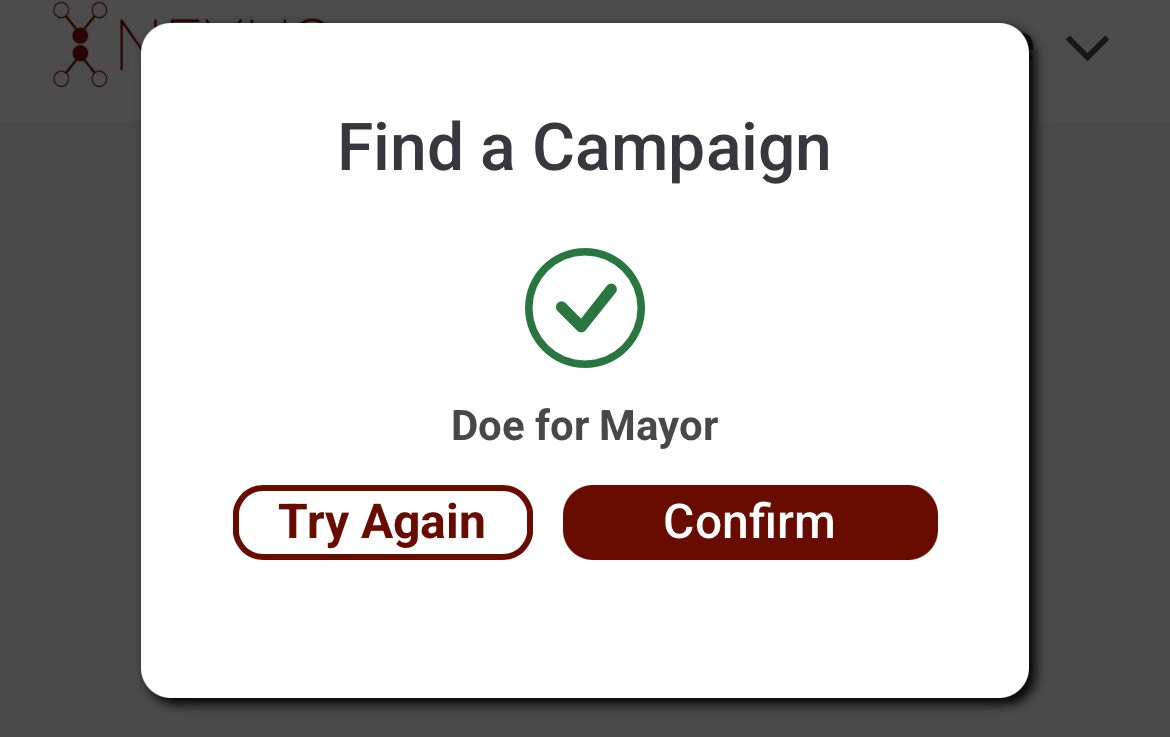
 If a campaign is found with that code, you will be shown a green checkmark with the campaign name. To finish adding yourself to the campaign, simply click "Confirm".
 If the system is not finding the intended campaign, we recommend reaching out to a campaign administrator to verify the code. Nexus will not provide organization codes to anyone other than campaign administrators.
Ensure that you are logged into your account by visiting app.mynexus.io and using your account credentials.
If the system is not finding the intended campaign, we recommend reaching out to a campaign administrator to verify the code. Nexus will not provide organization codes to anyone other than campaign administrators.
Ensure that you are logged into your account by visiting app.mynexus.io and using your account credentials.
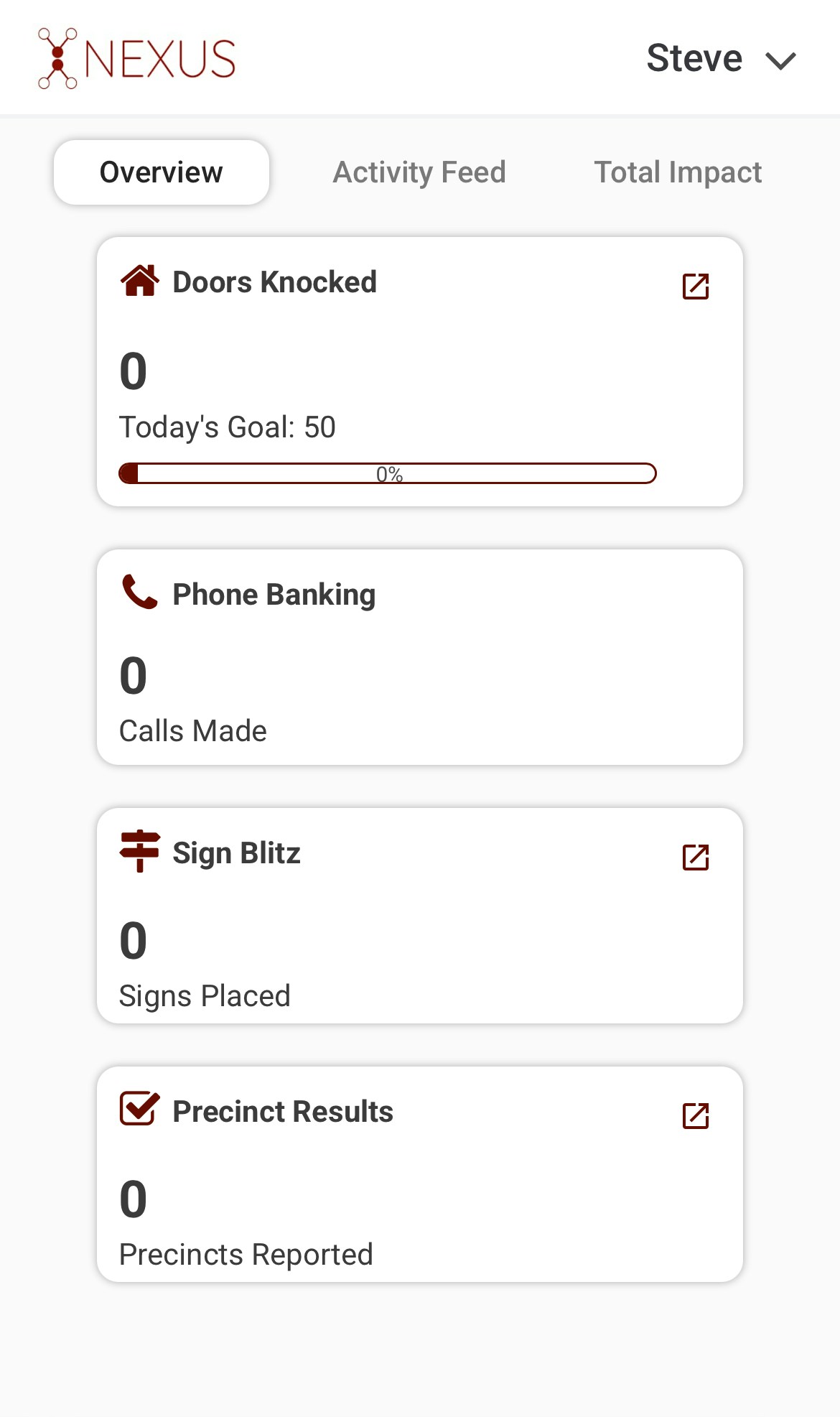 After clicking the arrow next, you will notice a dropdown menu appear. Simply click "Settings".
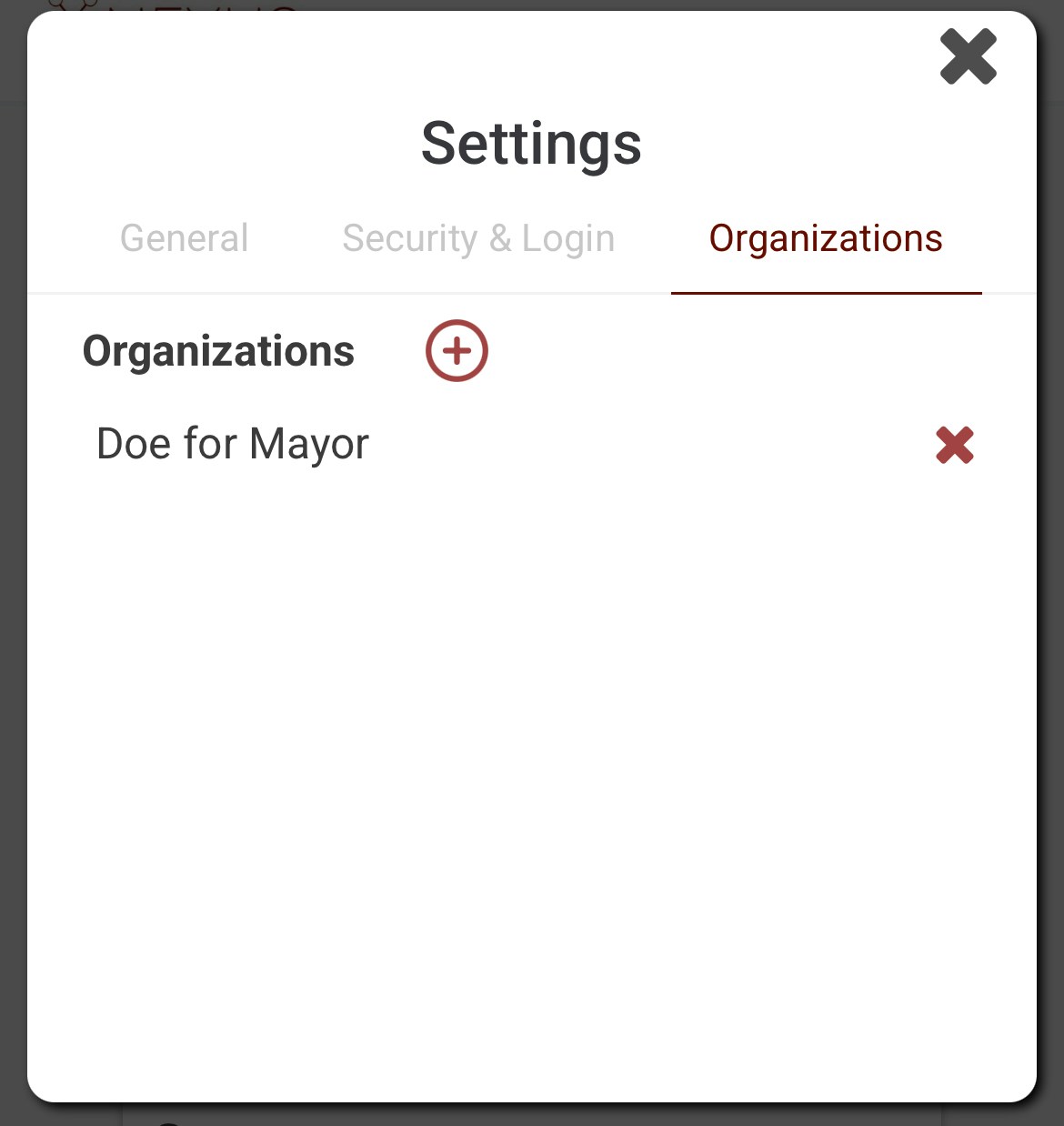
There will be tabs listed near the top of the popup. Locate the "Organization" tab and click on it.
You will see an icon with a plus button next to the header. Click that to prompt the organization code input.
After clicking the arrow next, you will notice a dropdown menu appear. Simply click "Settings".
There will be tabs listed near the top of the popup. Locate the "Organization" tab and click on it.
You will see an icon with a plus button next to the header. Click that to prompt the organization code input.
 Each campaign is assigned a 4-digit code that they can provide to volunteers. Once the code is inputted, the system will automatically check for a campaign that matches.
 If a campaign is found with that code, you will be shown a green checkmark with the campaign name. To finish adding yourself to the campaign, simply click "Confirm".
 If the system is not finding the intended campaign, we recommend reaching out to a campaign administrator to verify the code. Nexus will not provide organization codes to anyone other than campaign administrators.
###
###
If the system is not finding the intended campaign, we recommend reaching out to a campaign administrator to verify the code. Nexus will not provide organization codes to anyone other than campaign administrators.
###
###